Kanzi creates the animations by gradually changing the value of property between two keyframes. When creating an animation that changes the values of the Transformation property that defines the position and size of an object, you create movement. However, you can also create an animation that changes the values of any other property, such as color.
In Kanzi you create animations in an animation clip. To create a more complex animation, you can organize animations into timeline entries and timeline sequences. See Animations.
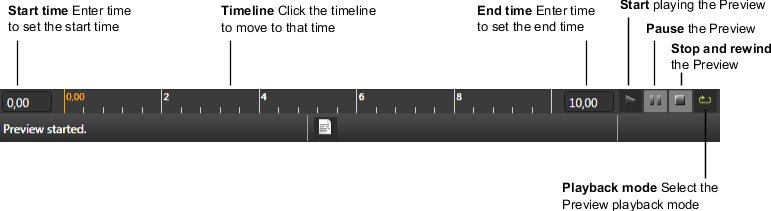
In Kanzi Studio the timeline shows the time of animations in your application in seconds. To control your application in the Preview, use the controls in the bottom of Kanzi Studio.
In this tutorial you create a one-second animation of a bouncing ball.
In this step you first create the objects for your animation, and then create the keyframes for the animation.
Create the project and objects you want to animate
Create a new Kanzi Studio project.
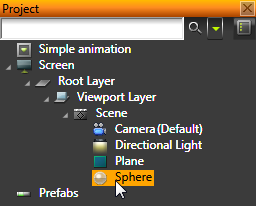
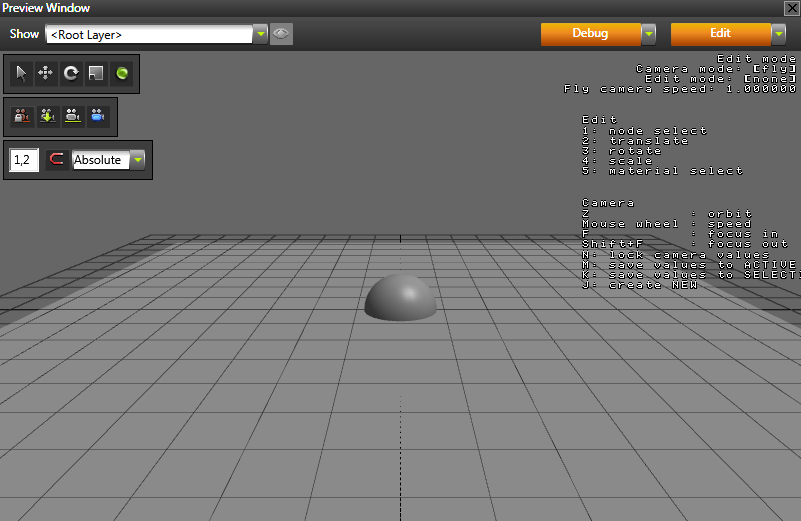
Create a plane and a sphere. In this tutorial you use the plane as the ground, and the sphere as the ball that bounces off the ground.
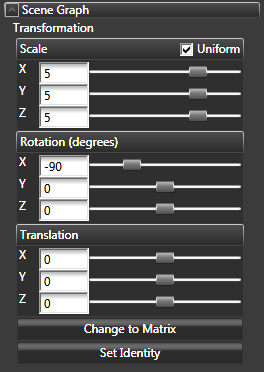
Rotate and scale the plane.
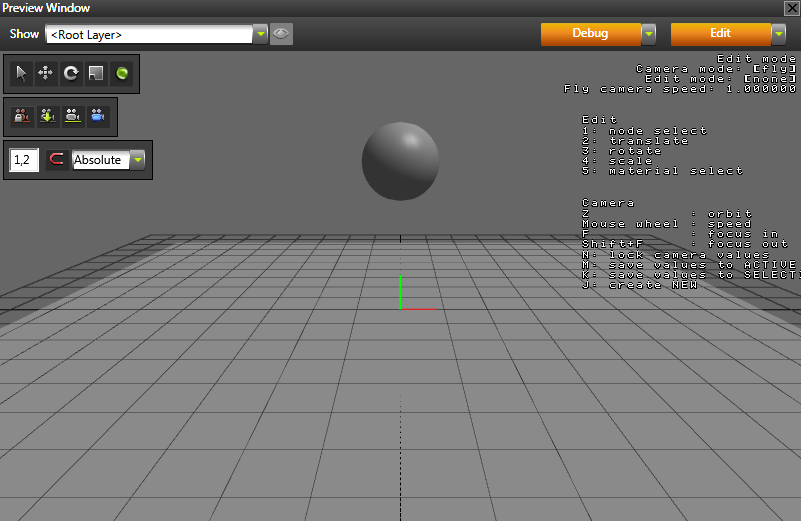
Move the sphere above the plane into a starting position of the animation.
Create the animation
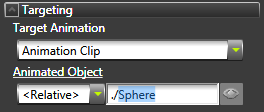
In the Library select Animations > Timeline Sequences > Timeline Sequence > Timeline Entry and in the Properties set Animated Object property to ./Sphere. This way you tell Kanzi which object in your project you want your animation to animate. Because animations in Kanzi are separated from the objects, you can reuse them on any object in your project.
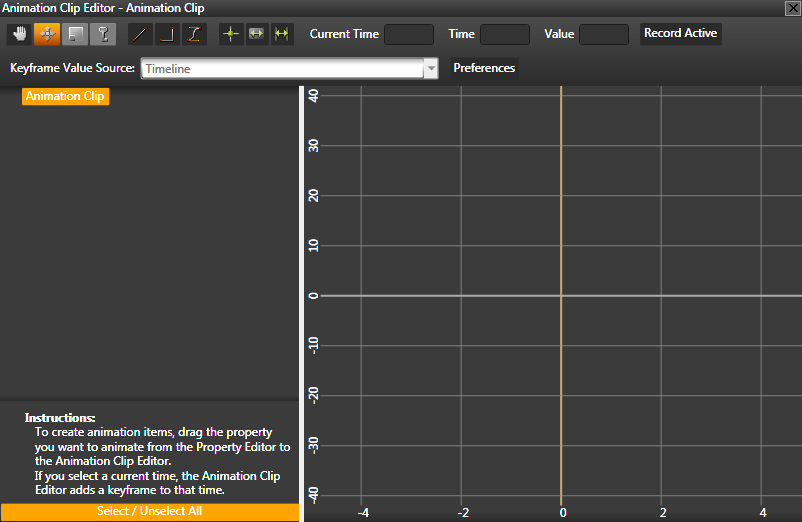
In the Library double-click Animations > Timeline Sequences > Timeline Sequence > Timeline Entry > Animation Clip to open the Animation Clip Editor.
In the Animation Clip Editor set the Current Time to 0. By setting the Current Time you tell Kanzi Studio at what time in the application you want to create a keyframe.
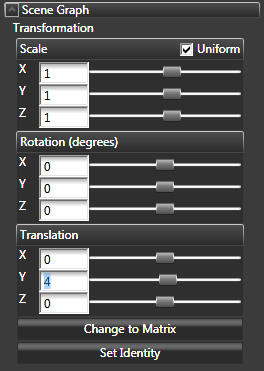
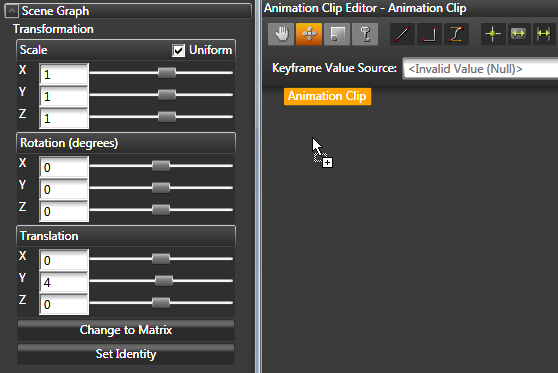
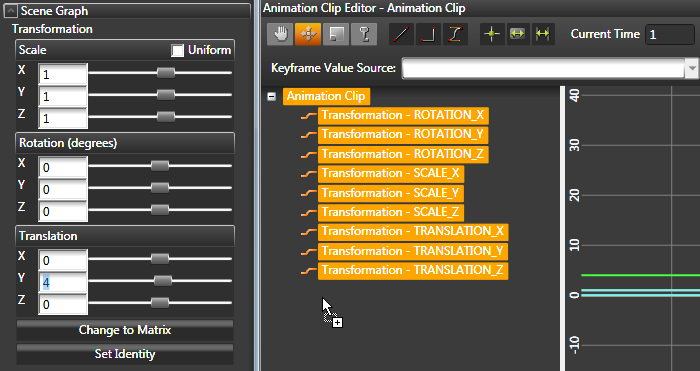
In the Project select the sphere and create a keyframe by dragging and dropping the Transformation property from the Properties to the Animation Clip Editor. This keyframe sets the position of the sphere in the beginning of the animation (the keyframe contains the values of the sphere Transformation property attributes).
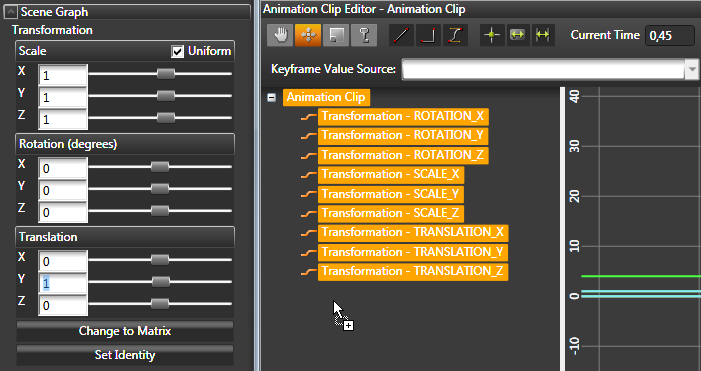
In the Animation Clip Editor set the Current Time to 0,45, in the Properties or the Preview move the sphere right on top of the plane, and create a keyframe by dragging and dropping the Transformation property from the Properties to the Animation Clip Editor. This keyframe sets the position of the sphere as it hits the plane.
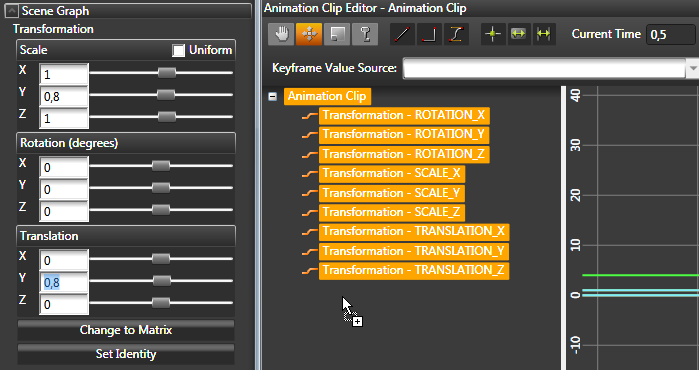
Set the Current Time to 0,5, scale the sphere on the y axis and move it right on top of the plane, and create a keyframe. This keyframe scales the sphere on y axis (the ball squezees as it hits the ground), and positions it right on top of the plane.
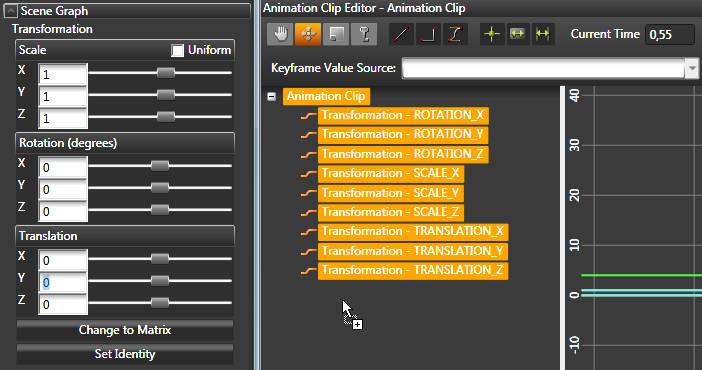
Set the Current Time to 0,55, return the scale of the sphere to the state before it hit the plane, move it right on top of the plane, and create a keyframe. This keyframe returns the sphere to its original size (the ball regains the shape as it bounces), and positions it right on top of the plane.
Set the Current Time to 1, move the sphere to its starting position, and create a keyframe. This keyframe returns the sphere to the position in which it was in the beginning of the animation.